


.avif)
Most marketing teams waste 3-5 hours weekly exporting Snapchat Ads data into spreadsheets. If you're managing Snapchat campaigns targeting Gen Z audiences, you already know the platform offers unique metrics: swipe-up rates, screen time, story completion. These don't exist on Meta or TikTok. But Snapchat Ads Manager wasn't built for comprehensive reporting.
This guide shows you how to build an automated Snapchat Ads dashboard in Looker Studio that updates daily without manual CSV exports. You'll learn which metrics matter for vertical video advertising, how to structure your dashboard, and why Snapchat's engagement signals work differently than other platforms.
What's Included in This Guide
✅ Free Snapchat Ads dashboard template for Looker Studio
✅ Step-by-step Dataslayer setup (under 10 minutes)
✅ 5 proven optimization use cases with real examples
✅ Troubleshooting guide for common reporting issues
Why Snapchat Ads Reporting Needs a Different Approach
Snapchat reached 946 million monthly active users in Q4 2025, with 90% of 13-24 year-olds and 75% of 13-34 year-olds using the platform according to Snap Inc.'s official data. For brands targeting younger demographics (fashion, beauty, entertainment, DTC products), it's often the highest-engagement platform in your media mix.
But Snapchat works differently than other ad platforms:
Vertical-first format (9:16): Every ad is designed for full-screen mobile viewing. Your dashboard needs to track vertical video performance, not adapted landscape creative.
Swipe-up as primary CTA: While Facebook measures link clicks and TikTok tracks profile visits, Snapchat's core metric is the swipe-up. This measures direct intent better than impression-based metrics because users physically engage with the ad.
Story Ads architecture: Unlike Instagram Stories in a single feed, Snapchat Story Ads appear across Discover feed, between friends' stories, and in Publisher Stories. Each placement performs differently, and default reporting doesn't break this down.
Ephemeral culture: Users expect 3-10 second content. Track not just views, but screen time (how long people watched) and quartile drop-off (where they stopped watching).
Snapchat Ads Key Metrics That Actually Matter
Before building your dashboard, understand which Snapchat metrics provide useful data for optimization:
Core Engagement Metrics
Swipe Up Rate: Percentage of impressions that generated a swipe-up. According to Sprout Social's 2025 analysis, this is your primary performance indicator. Higher rates mean stronger creative and relevant targeting.
Screen Time (milliseconds): Total time users spent viewing your ad. More valuable than view count because it shows actual attention, not just whether the ad loaded on screen.
Video Views (2+ seconds): Snapchat counts a view when someone watches 2+ consecutive seconds OR swipes up. This stricter qualification helps you identify truly engaged viewers.
Quartile Completion (25%, 50%, 75%, 100%): Percentage reaching each milestone. A video with 80% completion to 25% but only 15% to 100% tells you the hook works but the ending loses people.
Story Ads Specific Metrics
Story Opens: Times users tapped your branded tile to view your Story Ad.
Story Completes: Times users viewed through to the last Snap in your sequence.
Story Completion Rate: Calculate as (Story Completes ÷ Story Opens) × 100. This reveals content quality and how well your narrative holds attention.
Position Metrics: For each Snap position (first, second, third), Snapchat reports impressions, screen time, and swipe-up rate separately. This shows exactly where users drop off.
Conversion Tracking
Snap Pixel Events: Standard events include purchases, add to cart, sign ups, page views, plus five customizable events.
Purchase ROAS: Revenue divided by spend. Snapchat calculates this when you pass purchase values through the Pixel.
Attribution Windows: Choose 1-day, 7-day, or 28-day click attribution, plus view attribution from 1-hour to 7-days. Longer windows capture more conversions but reduce clarity on which ads drove results.
Reach and Frequency
Earned Impressions: Impressions from users sharing your ad via Chat or posting to their Story. This organic amplification from paid creative tracks separately from paid impressions.
Frequency: Average times each unique user saw your ad. Snapchat recommends keeping frequency below 3.0 for awareness campaigns, below 5.0 for conversion campaigns.
Step-by-Step: Connect Snapchat Ads to Looker Studio
Here's the complete process to automate your dashboard:
Prerequisites Checklist
- Snapchat Ads account with active campaigns
- Admin or Advertiser role in Ads Manager
- Google account for Looker Studio access
- Dataslayer account (15-day free trial)
Step 1: Connect Snapchat in Dataslayer Hub
Log into your Dataslayer Hub. Navigate to Connectors → Snapchat Ads → Add Connection.
Click "Connect Snapchat Ads Account" which opens Snapchat's OAuth authorization. Sign in with your Snapchat Business credentials and grant read-only permissions. Dataslayer cannot modify campaigns or budgets, it only reads performance data.
For agencies managing multiple clients, connect multiple accounts. All connected accounts will be available when building your dashboard.
Step 2: Add Dataslayer Connector in Looker Studio
Open Looker Studio and create a new report.
Click Add Data → Create New Data Source → Search "Dataslayer".
Select Dataslayer Snapchat Ads from the connector list.
Authorize the connection when prompted. This links your Dataslayer account to Looker Studio.
Step 3: Select Your Snapchat Account
Once authenticated, select which Snapchat account(s) you want to use from the accounts you connected in Step 1.
Click Connect. Your Snapchat Ads data source is now ready.
That's it. The connector is configured and ready to use.
Step 4: Build Your Dashboard with Metrics and Dimensions
Now you can start building your dashboard. Dataslayer provides all Snapchat metrics and dimensions as available fields.
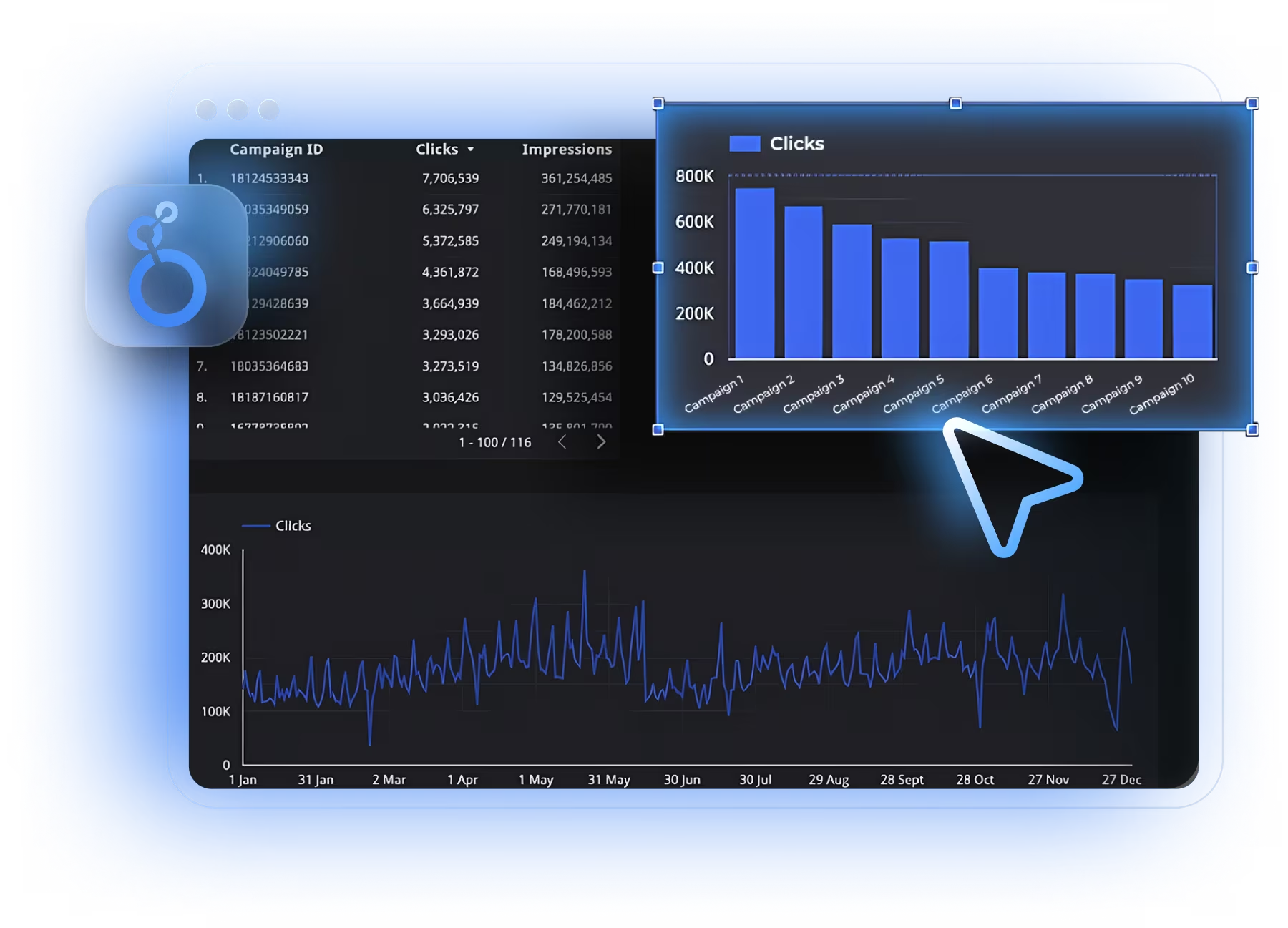
Create four pages for different reporting needs:
Page 1: Campaign Overview
Add charts and select your metrics:
- Scorecards: Spend, Impressions, Swipes, Conversions
- Time series chart: Add Date dimension, then Spend and Swipes metrics
- Bar chart: Campaign Name dimension by Swipe Up Percent metric
- Table: Campaign Name, Spend, Cost per Swipe Up (calculated: Spend ÷ Swipes)
Page 2: Creative Performance
Select these fields when building charts:
- Table: Creative Name, Creative Thumbnail, Avg Screen Time (Screen Time Millis), Swipe Up Percent
- Funnel chart: Video Views → Video Quartile 25% → Video Quartile 50% → Video Quartile 75% → View Completion
- Scatter plot: Screen Time Millis (x-axis) vs Swipe Up Percent (y-axis), bubble size by Spend
Page 3: Story Ads Analysis
Available Story metrics:
- Scorecards: Story Opens, Story Completes
- Create calculated field: Story Completion Rate = (Story Completes ÷ Story Opens) × 100
- Time series: Date dimension with Story Opens and Story Completes metrics
- Table: Campaign Name, Story Opens, Story Completes, Completion Rate
Page 4: Conversion Tracking
Select conversion metrics:
- Funnel chart: Impressions → Swipes → Conversions (or specific Snap Pixel events)
- Table: Campaign Name, Spend, Conversions, Purchase ROAS
- Compare attribution windows: Create separate scorecards showing conversions with different date ranges to simulate attribution windows
Every time you open your dashboard, Dataslayer automatically pulls the latest data from Snapchat. No configuration needed after initial setup.
For pre-built templates and more examples, check out our guide on marketing dashboard best practices which covers dashboard design principles that work across all ad platforms.
What to Track at Each Campaign Level
Effective Snapchat reporting requires three analysis levels:
Campaign Level (Budget Allocation)
Key metrics: Total Spend, Reach, Frequency, Purchase ROAS, Cost per Swipe Up
Action triggers:
- Frequency above 6.0 → Expand audience or refresh creative
- ROAS below target → Pause or reduce daily budget
- eCPSU rising 50%+ week-over-week → Increased competition or ad fatigue
Ad Squad Level (Targeting Optimization)
Key metrics: Spend by Ad Squad, Swipe Up Percent by segment, Demographic performance, Placement performance
Action triggers:
- One squad delivering 70%+ conversions at 40% lower CPA → Shift budget
- Stories outperform Discover by 2x → Create Stories-specific campaigns
- Age 18-24 shows 3x swipe-up vs 25-34 → Tighten targeting
Ad Level (Creative Testing)
Key metrics: Creative Thumbnail, Video Completion Rate, Avg Screen Time, Shares/Saves, Swipe Up Rate
Action triggers:
- Ad with 2x average screen time → Scale this creative style
- 80% drop-off at 3 seconds → Weak hook, recut first 2 seconds
- High shares but low swipes → Entertaining but lacks clear CTA
5 Practical Dashboard Use Cases
Use Case 1: Video Engagement Funnel Analysis
Problem: You run 30-second product demos but don't know where viewers drop off.
Setup: Create a funnel with Video Views → Quartile 1 → Quartile 2 → Quartile 3 → View Completion → Swipes. Filter by Creative Name to compare versions.
What you'll discover: If 1,000 people start but only 200 reach 50%, your middle content is weak. If 800 complete but only 50 swipe up, your CTA is unclear.
Real example: A fitness brand tested two 20-second ads. Version A: product montage (65% completion, 1.2% swipe-up). Version B: person using product (45% completion, 2.8% swipe-up). Lower engagement, higher conversions. They scaled Version B.
Use Case 2: Story Position Optimization
Problem: Your 5-Snap Story gets 10,000 opens but only 1,200 see the last Snap with your offer.
Setup: Create a table showing Position 1-5 with Impressions, Screen Time, Swipe Up Rate for each. Calculate drop-off between positions.
Action: If 50% drop after Position 2, that Snap is boring. If Swipe Up Rate peaks at Position 4, move your strongest offer there, not at the end.
Use Case 3: Creative Format Performance
Problem: You're testing five formats (testimonials, features, lifestyle, unboxing, comparisons) and need winners.
Setup: Table with Creative Name, Thumbnail, Avg Screen Time, Swipe Up Percent, Cost per Swipe Up, Conversions. Sort by Purchase ROAS descending.
Discovery: The format with highest screen time might not convert best. User testimonials might hold attention (5.2 seconds) but comparison charts drive 3x more swipes despite lower watch time (3.1 seconds).
Use Case 4: Attribution Window Analysis
Problem: Your dashboard shows 150 conversions but finance wants the "real" number.
Setup: Query campaigns with three attribution windows: 1-day click/1-day view (strict), 7-day click/1-day view (default), 28-day click/7-day view (generous). Compare conversion counts.
Discovery: A campaign showing 2.5x ROAS with 28-day attribution might show 0.8x with 1-day. This doesn't mean Snapchat doesn't work. It means your product has a longer purchase cycle.
Action: Products under $50 use shorter windows. Products over $200 or B2B services use 28-day because decisions take weeks.
Use Case 5: Creative Fatigue Detection
Problem: Your best ad delivered great results for 6 weeks, then swipe-up rates dropped 40%.
Setup: Time series showing Date, Swipe Up Percent, Frequency filtered to specific Ad Name. Add comparison to previous 30 days.
Discovery: Frequency climbs from 2.1 to 5.8. As the same people see your ad repeatedly, engagement falls.
Action: Refresh creative when frequency hits 4.0 or swipe-up rate declines 30% from baseline. Set up Looker Studio alerts to notify you automatically.
Snapchat Creative and Reporting Best Practices
Creative Production Guidelines
Video length: 3-5 seconds for awareness, up to 10 seconds for consideration. Completion rates drop sharply after 15 seconds.
Format specifications:
- Resolution: 1080×1920 pixels minimum (9:16)
- File size: Max 1GB video, 5MB images
- Formats: .mp4/.mov for video, .jpg/.png for images
- Safe zones: Avoid top 150px and bottom 150px where UI elements appear
Branding timing: Place logo and value proposition in first 2 seconds. 70% of users make skip decisions within this window.
Call-to-action: Be explicit. "Swipe up to shop" converts better than "Learn more." Include visual cues like upward arrows.
Targeting Strategy
Age precision: Don't use 18-34 as one segment. Break into 18-24 and 25-34 minimum. The 18-24 cohort engages more with entertainment and fashion, while 25-34 responds to practical solutions.
Location targeting: For local businesses, use 5-10 mile radius around stores, not city-wide coverage which wastes budget.
Interest layering: Stack 2-3 categories. "Beauty & Fashion" + "Health & Fitness" targets overlapping interests more precisely.
Bidding and Budget
Automatic bidding: Snapchat's algorithm optimizes delivery better than manual for most advertisers. Set your optimization goal (swipes, conversions) and budget, then let the system work.
Budget pacing: Distribute spend evenly throughout the day. Snapchat usage peaks 6PM-10PM local time, so campaigns that exhaust budgets early miss high-engagement hours.
Testing methodology: Run A/B tests with at least $100-200 spend per variant and 3-4 days delivery before making decisions. Snapchat enters an "exploration phase" for 24-48 hours where performance fluctuates.
Snapchat vs Instagram Stories: Performance Comparison
Both platforms offer vertical Story ads, but performance differs:
Key reporting differences:
Position-level metrics: Snapchat provides granular data on each individual Snap. Instagram aggregates without per-frame breakdown.
Earned impressions: Snapchat separately tracks when users share your ad. Instagram counts shares but doesn't surface this in standard reporting.
Screen time precision: Snapchat measures in milliseconds for detailed analysis. Instagram rounds to full seconds, less precise for short content.
If you're running campaigns across multiple social platforms, our Meta Ads dashboard guide shows how to build similar reporting for Facebook and Instagram campaigns.
Troubleshooting Common Issues
Data Not Appearing in Dashboard
Problem: Connected Snapchat but no data in Looker Studio.
Fix: Verify campaigns have spend in your selected date range. Snapchat's API only returns data for periods with actual delivery. Check Dataslayer Hub → Connectors → Snapchat Ads. If connection shows "Expired," click "Reconnect."
Discrepancies Between Ads Manager and Dashboard
Problem: Ads Manager shows 1,250 conversions, dashboard shows 1,187.
Explanation: Snapchat finalizes attribution 48 hours after conversion events. Real-time views show pending conversions; API data shows finalized after attribution window closes.
Fix: Wait 48 hours after campaign ends before pulling final reports. Verify attribution window settings match between Ads Manager and your query.
Story Metrics Showing Zero
Problem: Story Ads campaign running but Story Opens/Completes show zero.
Fix: Story metrics only populate for campaigns using Story Ads objective, not Single Image/Video ads in Story placements. Verify Campaign → Details → Ad Format says "Story Ads."
High Frequency Not Reflected
Problem: You suspect ad fatigue but frequency seems normal (around 2.0).
Fix: Frequency requires both impressions and reach. Ensure your query includes "Impressions" and "Uniques" metrics. Create calculated field: Frequency = Impressions ÷ Uniques. Note: Reach data only available at campaign level with daily granularity.
Manual vs Automated Reporting Comparison
Automation and Scheduling
For client reporting, use Looker Studio's scheduling: Report → Share → Schedule email delivery. Send weekly summaries every Monday before your calls.
Create separate views for different audiences:
- Executive: High-level ROAS, spend, conversions
- Campaign manager: Campaign performance, testing results
- Creative team: Completion rates, screen time, top formats
Similar to our approach in the TikTok Ads campaigns guide, segment your dashboards by stakeholder needs rather than showing everyone everything.
Your Snapchat Ads dashboard is now ready to deliver daily performance insights without manual work. Connect your campaigns, build your first queries, and start tracking the metrics that matter: swipe-up rates, story completion, and conversion ROAS. All updating automatically each morning.
About Dataslayer: Dataslayer connects 50+ marketing platforms including Snapchat Ads, Meta Ads, Google Ads, TikTok, and LinkedIn to Looker Studio, Google Sheets, BigQuery, and Power BI. Used by 10,000+ marketers to automate reporting and build unified cross-channel dashboards.



