



Google Sheets transformed into an AI-powered analysis platform in 2025 with Gemini integration. The =AI() function became one of Google's fastest-adopted features, enabling marketers to generate text, categorize data, and analyze sentiment directly in cells. Enhanced with Google Search results in October 2025, these tools automate data preparation tasks that previously required manual row-by-row review. This guide shows you exactly how to use each feature for campaign analysis, reporting, and automation.
AI Feature Comparison: What Works Best for Marketing Tasks
Understanding Google Sheets AI in 2025
Marketing teams spend hours weekly on manual data exports, formatting, and analysis. Google Sheets AI eliminates this through three native features: the =AI() function for text processing, Smart Fill for pattern recognition, and the Gemini sidebar for conversational analysis.
All require Google Workspace with Gemini Business, Gemini Enterprise, or Google One AI Premium subscriptions.
What Changed in 2025
October 2025: Google enhanced the AI function with Google Search integration. Now it pulls current web data for queries like "daily box office for newly released movies" or "market sentiment for product launch."
August 2025: AI functions expanded to seven additional languages (Spanish, Portuguese, Japanese, Korean, Italian, French, German).
The =AI() Function: Your Marketing Analysis Shortcut
The =AI() function takes plain English instructions instead of complex formulas.
Basic syntax:
=AI("instruction", A2)
=AI("instruction with context", A2:C2)
Processes text in specified cells and returns results. Reference single cells, ranges, or combine multiple data points.
Marketing Use Cases That Actually Matter
Campaign Performance Categorization
Your Google Ads dashboard shows 200 campaigns. You need to group them by performance tier for your monthly report:
=AI("Categorize this campaign as High Performer, Average, or Needs Attention based on CTR and conversion rate", A2:C2)
Column A has campaign names, B has CTR, C has conversion rate. Drag the formula down 200 rows. Done in 30 seconds.
Customer Feedback Analysis
You exported 500 product reviews. Your boss wants sentiment breakdown:
=AI("Classify this review as Positive, Negative, or Neutral", A2)
Apply to all reviews. COUNTIF shows: 312 positive, 156 neutral, 32 negative.
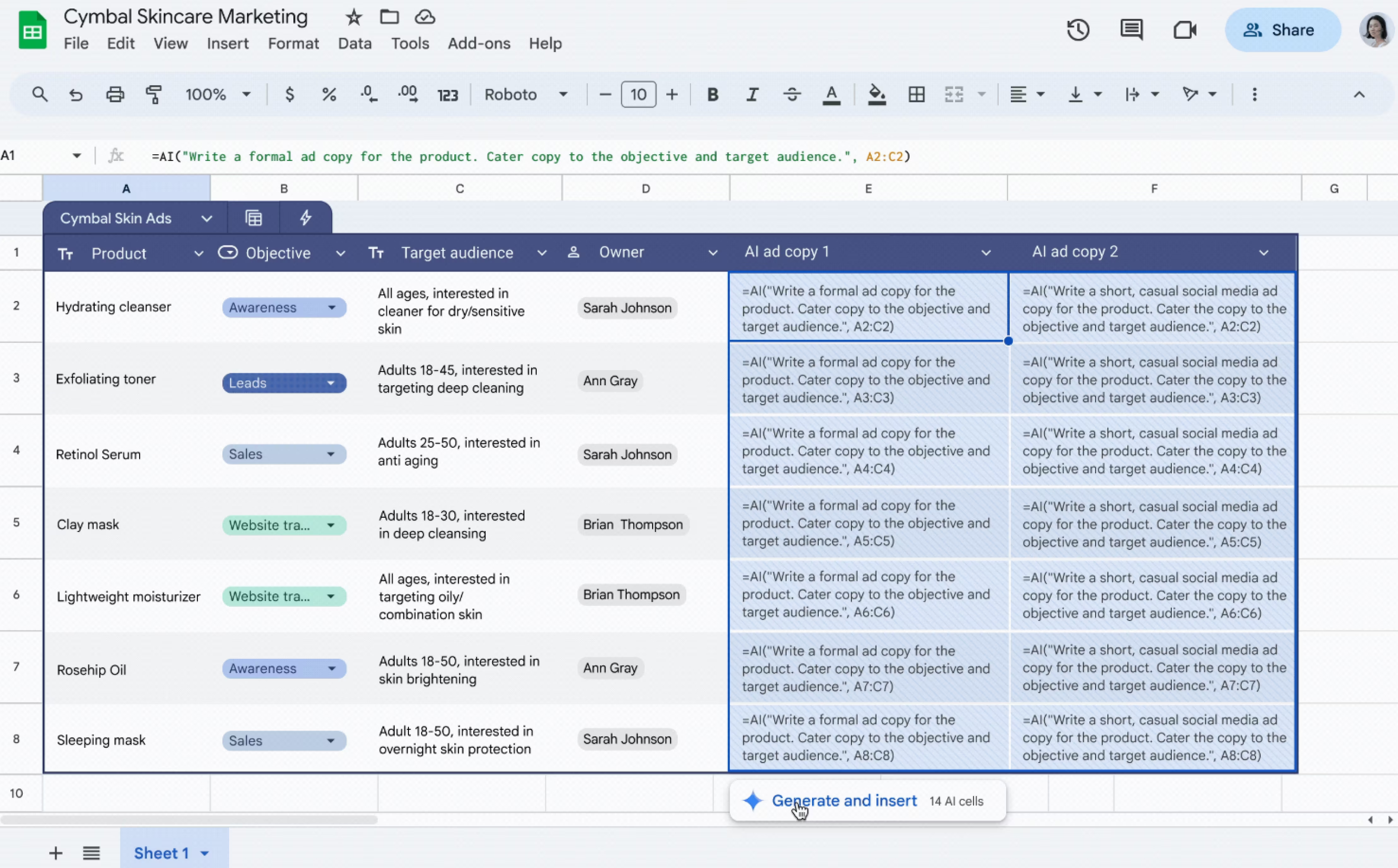
Ad Copy Generation
You're running 50 Facebook Ad variations. Each needs unique copy tailored to product and audience:
=AI("Write a formal ad copy for this product. Target audience is in column B, product features in column C. Keep it under 100 characters.", A2:C2)
Generates first drafts in seconds. You edit for brand voice.
Advanced Prompts That Get Better Results
Concatenation for Multiple Data Points
When your data isn't in adjacent columns:
=AI("Create a summary of "&A2&" campaign performance. Budget was "&E2&" and ROAS was "&H2&". Write 1 sentence.", A2:H2)
This pulls campaign name from A2, budget from E2, and ROAS from H2 even though they're not next to each other.
Structured Output Requirements
=AI("Analyze this customer comment and return: 1) Sentiment (positive/negative/neutral), 2) Primary topic, 3) Urgency level (high/medium/low). Format as: Sentiment | Topic | Urgency", B2)
When you need consistent formatting across hundreds of rows, specify the exact output structure in your prompt.
.avif)
Smart Fill: Pattern Recognition for Data Entry
Smart Fill detects patterns as you work and offers to complete them automatically. No prompts needed.
Type "John Smith" in A2, then type "John" in B2. Start typing "Jane" in B3 (where A3 says "Jane Wilson"). Smart Fill suggests completing the entire column with first names. Accept with Enter.
Marketing Use Cases
- UTM Parameter Extraction: Type the campaign source from two URLs manually. Smart Fill recognizes you're extracting "utm_source=" values and completes the remaining 298 rows.
- Email Address Formatting: Format two employee names as firstname.lastname@company.com. Smart Fill replicates the pattern for all remaining rows.
- Phone Number Standardization: Format three phone numbers consistently. Smart Fill applies it across your entire dataset.
Enhanced Smart Fill (Gemini Enterprise)
Goes beyond simple patterns and understands context. Mark sentiment (Positive/Negative/Neutral) for three customer reviews manually. Enhanced Smart Fill analyzes actual text content and suggests labels for remaining rows, even when wording differs completely.
Limitation: Inconsistent data breaks Smart Fill. If you have "John Smith", "Smith, Sarah", and "M. Rodriguez" in the same column, there's no pattern to follow. Clean your data first or use the AI function instead.
Gemini Sidebar: Conversational Analysis
Click the sparkle icon (top right) to open Gemini. It sees your data and can modify it directly.
Chart Creation
You have three months of ad performance across platforms (Date, Platform, Spend, Conversions, ROAS).
Type: "Create a line chart showing spend over time by platform"
Gemini generates the chart with proper axes and colors. Don't like it? "Make it a stacked bar chart instead." Done.
Formula Writing
Instead of searching "how to calculate ROAS," ask Gemini:
"Create a formula that calculates ROAS using revenue in column F and spend in column C"
Returns: =F2/C2 with explanation. Suggests formatting as percentage and applying to all rows.
Complex example: "Calculate month-over-month growth rate for conversions. Previous month is in column D, current month in column E."
Writes: =((E2-D2)/D2)*100 with proper formatting.
Data Analysis
Ask questions requiring pivot tables and formulas:
- "What's the average conversion rate by traffic source?" (500 rows of data)
- "Which products had declining sales in Q4?"
- "Show me outliers in the CPC column (anything more than 2 standard deviations from the mean)"
Gemini processes, calculates, and highlights results.
When to use what: Gemini for exploratory analysis and visualizations. AI function for repeating tasks across many rows. Both together: Ask Gemini to write your AI function formula, then apply it to 1,000 rows.
Automating Marketing Data Collection
AI features require data in Sheets first. Most marketing data lives in ad platforms and analytics tools.
Native Google Add-ons
The Google Ads add-on connects directly to your accounts. Configure metrics, date ranges, schedule updates (daily/weekly/monthly). Works well for Google properties but breaks down when you need five platforms in one analysis.
Multi-Channel Integration
Marketing attribution requires seeing all channels together. Automated data integration solves this by connecting Google Ads, Facebook Ads, LinkedIn Ads, and GA4 to one Sheet. Then:
- Column I:
=AI("Categorize performance as Excellent, Good, Average, or Poor based on ROAS", A2:H2) - Column J:
=(H2/G2)*100(conversion rate) - Gemini: "Create a dashboard showing total spend and ROAS by platform for the last 30 days"
Complete cross-channel analysis updating daily. Learn more about connecting Google Ads to Sheets.
Real Marketing Workflows Using Google Sheets AI
Weekly Performance Report: 2 Hours → 15 Minutes
Before: Manual exports from three platforms (28 min), copying to master sheet (15 min), calculations (20 min), charts (25 min), summary writing (30 min).
After: Automated data sync overnight. Add formulas:
=AI("Calculate percentage change vs last week and categorize as Up Significantly, Up Slightly, Flat, Down Slightly, or Down Significantly", B2:C2)- Ask Gemini: "Show spend vs revenue by platform for this week vs last week"
=AI("Write a 3-sentence executive summary of this week's performance based on spend, revenue, and ROAS trends", A2:H2)
Review and send. Done in 15 minutes.
Campaign Launch Analysis
You launched 20 Facebook Ad campaigns. Need to identify which to scale vs. pause. Add this formula:
=AI("Analyze this campaign's performance. Consider CTR, CPC, and conversion rate in columns D, E, and F. Recommend: Scale, Monitor, or Pause. Explain in 1 sentence.", A2:F2)
Apply to all 20 rows. Sort by recommendation. Clear next steps without manual evaluation.
Limitations and Workarounds
- AI Functions Have Token Limits: Works best with text under 1,000 characters per cell. For long content, use SPLIT to break into chunks, process separately, then combine.
- Smart Fill Needs Clean Data: Inconsistent formatting ("John Smith", "Smith, Jane", "M. Rodriguez") breaks pattern recognition. Use Find & Replace to standardize first, or write an explicit AI function:
=AI("Extract first name from this text regardless of format", A2) - Gemini Can Hallucinate: Reliable for your spreadsheet data, less reliable for general knowledge questions. Limit prompts to questions about your data. For calculations, have it write formulas you can verify.
- Privacy Considerations: Google states Gemini applies your organization's data controls and doesn't train AI models on your data without permission. If working with highly confidential information, review Workspace admin settings before enabling AI features.
Cost and Access
- Free Google Sheets: No AI features
- Google Workspace + Gemini Business: =AI() function, Smart Fill, Gemini sidebar
- Google Workspace + Gemini Enterprise: All Business features plus Enhanced Smart Fill
- Google One AI Premium: Access for personal accounts
Most marketing teams choose Gemini Business. It includes everything in this guide except Enhanced Smart Fill.
FAQ
Q: Can I use AI functions offline or do they require internet?
AI functions require internet because processing happens on Google's servers. Offline, AI function cells show errors. Standard formulas (SUM, VLOOKUP) work offline.
Q: How accurate is sentiment analysis with the AI function?
Accuracy is high for straightforward reviews ("This product is amazing!" vs. "Terrible experience"). Lower for nuanced feedback with mixed sentiments. Spot-check a sample before trusting across thousands of rows.
Q: Will using AI functions slow down my spreadsheet?
Processing is server-side, so performance impact is minimal. Once generated, results behave like regular cell values. Gemini responses appear quickly.
Q: Can I combine the AI function with regular formulas?
Yes. AI functions return text/numbers like any formula: =IF(B2="High Performer", C2*1.2, C2) where B2 contains AI function output. Or feed formula results into AI: =AI("Write a summary", CONCATENATE(A2, " - ", B2)).
Q: What happens if my AI function prompt is too vague?
Vague prompts return vague results. Instead of "Look at this campaign data," use "Calculate conversion rate from columns D and E, then categorize as Above Target (>3%), On Target (2-3%), or Below Target (<2%)." Specific prompts = useful output.
Q: Can I schedule AI functions to run automatically when data updates?
AI functions recalculate automatically when referenced cells change, like standard formulas. If you have automated data flowing in daily, AI functions referencing that data reprocess automatically. No manual trigger needed.
The =AI() function, Smart Fill, and Gemini turn marketing data analysis from hours of manual work into minutes of automated processing. Start with one workflow (campaign categorization or weekly reporting) and expand once you see the time savings.
Want to automate data collection too? Try Dataslayer free for 15 days to connect Google Ads, Facebook Ads, LinkedIn Ads, and 50+ marketing platforms to Google Sheets and let AI features analyze everything in one place.



