


.avif)
Most template galleries show you beautiful screenshots of empty spreadsheets. Then you download one and realize you still need to spend an hour setting up formulas, fixing date ranges, and figuring out what data goes where.
This guide cuts through that. Below are templates marketing professionals actually use, organized by what you're trying to do, not by what looks impressive in a preview.
Why Bother With Templates?
Building a Google Ads dashboard from scratch takes about 90 minutes if you know what you're doing. A template gives you the same result in 5 minutes.
That's it. That's the reason.
Templates also prevent the formula errors everyone makes at least once, like calculating ROAS backward or forgetting to exclude zero-conversion days from your average CPA.
Marketing Analytics Templates
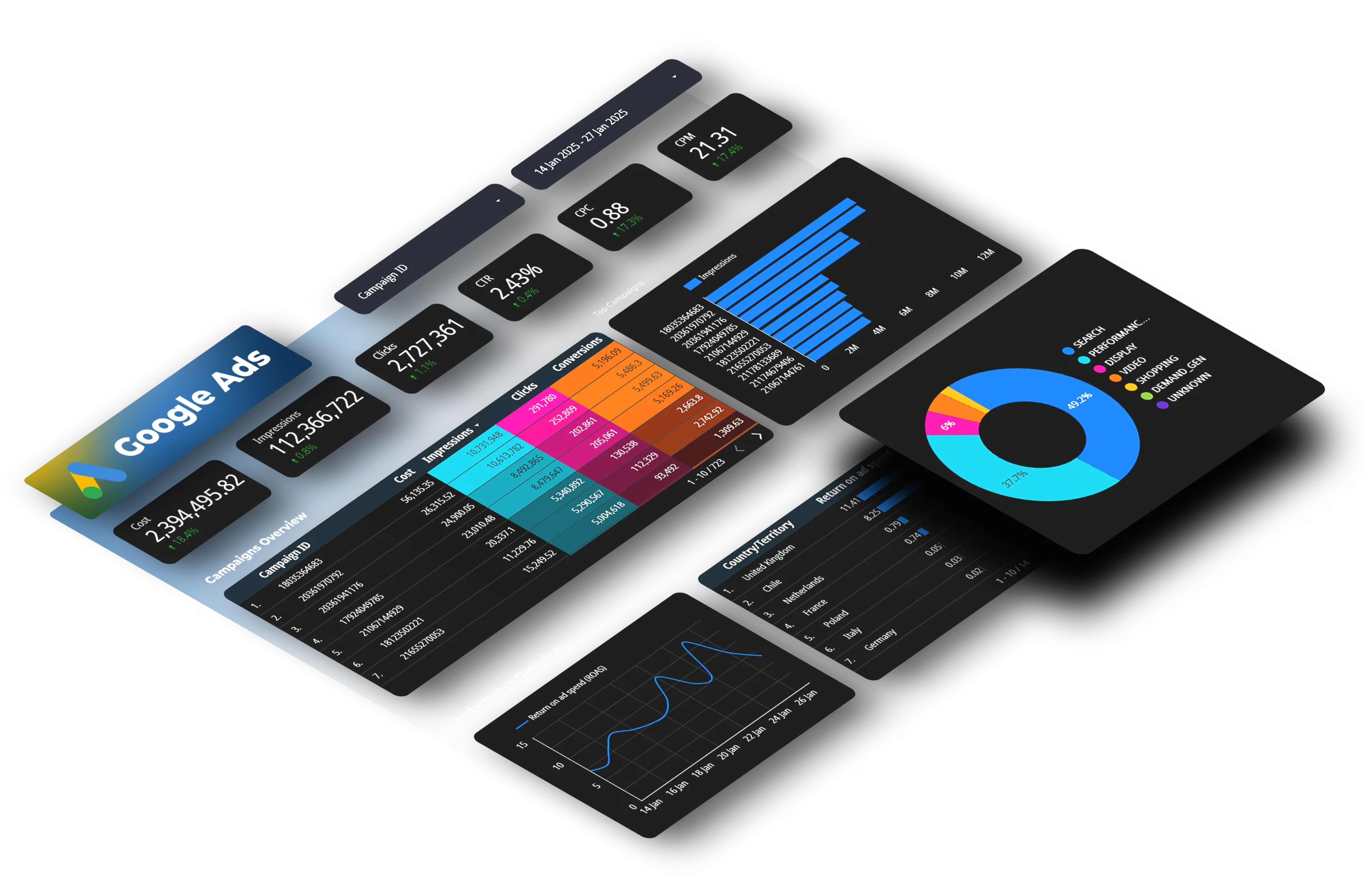
Google Ads Performance Dashboard. Shows campaign spend, conversions, Quality Scores, and budget pacing. Useful if you're checking Ads multiple times a day wondering if you're going to blow through your monthly budget by week three.
Multi-Channel Attribution Template. Compares first-touch, last-touch, and linear attribution across channels. Answers the question: "Facebook says they drove 200 conversions, but how many of those people found us through SEO first?"
Social Media Dashboard. Pulls performance from Facebook, Instagram, LinkedIn, and Twitter into one sheet. Saves you from logging into four different platforms every morning.
SEO Templates
Keyword Research Template. Tracks keywords, search volume, difficulty, current ranking, and target URL. The main benefit is spotting keywords where you rank #11-15. Those are easier to push to page one than starting from #47.
Content Calendar. Publication schedule with writer assignments, target keywords, and status tracking. Prevents you from accidentally writing about "email marketing best practices" three times in two months because nobody remembered you already covered it.
Backlink Tracker. Lists every backlink, domain authority, anchor text, and link status. One agency found that 8 of their best backlinks had disappeared when the source sites redesigned. They wouldn't have known without tracking.
Paid Advertising Templates
Facebook Ads Tracker. Campaign performance with frequency tracking and placement breakdowns. The frequency metric matters because once your ad hits 5+ impressions per person, performance usually tanks. This template makes that visible.
Cross-Platform Ad Spend Dashboard. Shows total spend across Google, Facebook, LinkedIn, and TikTok in one place.
You can build this by manually exporting CSVs from each platform weekly. Or if you're running multiple platforms daily, tools like Dataslayer automate it so data flows in without exports.
One company discovered their LinkedIn leads cost $84 while Google leads cost $31. They shifted budget and got more leads without spending more.
Google Ads Budget Planner. Daily and monthly budget tracking with overspend alerts. Helps you avoid the scenario where one campaign burns 140% of its budget by day 18.
Email Marketing Templates
Campaign Performance Tracker. Open rates, click rates, conversions, and revenue by email type (newsletter, promotional, educational).
Most email platforms show you individual campaign stats. This template tracks trends over time so you can spot patterns like "Tuesday sends get 30% higher opens than Friday sends."
A/B Test Tracker. Documents every test you run with results and learnings. Otherwise you end up testing the same subject line format six months later because nobody wrote down what happened last time.
Sales & CRM Templates
Lead Tracking Template. Lead source, stage, assigned rep, deal value, and days in current stage.
Before paying for a full CRM, this gives you most of what you need. One consulting firm tracked leads and found that webinar attendees closed at 3x the rate of whitepaper downloads, even though webinars generated fewer total leads.
Sales Pipeline Dashboard. Active opportunities by stage with win/loss tracking. Shows if you'll actually hit quota this month based on what's in the pipeline and historical conversion rates.
Budget & ROI Templates
Marketing Budget Planner. Planned vs actual spend by channel with variance tracking. One startup planned $10K monthly for content but only spent $6.5K because freelancers kept delivering late. The template showed the gap, so they reallocated the extra $3.5K to paid ads.
ROI Calculator. Spend and revenue by channel with multiple attribution models. Shows which channels actually make money and which ones burn it.
How to Make Templates Actually Work
Customize for Your Metrics
Most templates include standard metrics. Your business probably tracks different things.
Before using a template, remove metrics you don't care about and add the ones you actually track. Don't leave generic metrics in place because they might be useful someday. They just clutter the view.
Use Data Validation
Create dropdown lists for anything people enter repeatedly: campaign types, lead sources, channel names. This prevents someone typing "Brand" while someone else types "brand awareness" and breaking your ability to filter.
Add Conditional Formatting
Red cells when performance drops below your threshold. Yellow when budget pacing exceeds 110%. Green when you hit targets.
You should glance at the sheet and immediately see what needs attention.
Protect Your Formulas
If multiple people use the template, someone will accidentally delete a formula. Select formula cells, right-click, protect range, set permissions so only you can edit them.
Common Mistakes
Time zone mismatches. Facebook data defaults to UTC. Google Analytics uses your property time zone. If you're pulling from both, your "yesterday" might be different 24-hour periods.
Empty cell errors. If your formula is =SUM(B2:B30)/SUM(C2:C30) and you have zero conversions one day, you get #DIV/0! errors. Use =IFERROR() to handle this.
Hard-coded dates. Use formulas like =TODAY() instead of manually typing dates. Otherwise you'll eventually forget to update them and your "current month" report will show last month's data.
No documentation. Add a tab explaining how you calculated each metric. Six months from now when someone asks why you calculate engagement rate without including saves, you'll have the answer.
Connecting Live Data
Static templates need manual updates. You export CSVs, copy data, paste. Takes time, introduces errors.
The Google Ads add-on (free, official) pulls Google Ads data directly. Configure once, schedule daily refreshes, done.
The Google Analytics add-on does the same for GA4 data.
The challenge is combining multiple platforms. If you need Google Ads + Facebook + LinkedIn in one template, each has different add-ons and formats.
For multi-platform setups, you either export CSVs manually, write custom API scripts if you have a developer, or use automation tools if you're managing several platforms and need daily updates without manual work.
For more on this, check out how to automate Google Sheets data or connecting Google Ads to Sheets.
When to Build Your Own
Use existing templates for standard stuff: Google Ads reporting, email tracking, content calendars. These follow similar patterns across companies.
Build your own when you're tracking weird metrics that don't exist in standard templates, you need complex attribution logic beyond simple last-click, you're integrating with internal systems or proprietary tools, or your team has specific approval workflows built into the template.
Most teams should start with an existing template and customize it. Get 80% of the structure, modify the rest.
More Resources
If you're working with Google Sheets for marketing:
- Google Sheets QUERY function: SQL-like queries for analyzing campaigns
- The FILTER function guide: dynamic filtering for campaign data
- Google Sheets AI features: using Gemini to categorize and analyze data
The Dataslayer template gallery has templates pre-configured for marketing platforms with formulas for ROAS, attribution, and cross-platform comparisons already built in. They work with automated data connections from 50+ marketing platforms.
FAQ
Where can I find free marketing templates?
Google Sheets' built-in gallery (File → New → From template gallery) has generic business templates. For marketing-specific ones, look for galleries from marketing tool providers. Make sure they include the actual metrics you track.
How do I connect Google Ads to a template?
Install the Google Ads add-on from the Workspace Marketplace (Extensions → Add-ons → Get add-ons). Create queries for the metrics you want, set up scheduled refreshes.
Can I use one template for multiple clients?
Create separate copies. File → Make a copy for each client. Don't try to manage multiple clients in one sheet.
What's the difference between a template and a dashboard?
A template is pre-built structure with formulas and formatting ready for your data. A dashboard displays key metrics at a glance, often from multiple sources. Templates can become dashboards when you add data.
How often should I update the data?
Paid ads (Google, Facebook): daily updates catch budget issues early. SEO metrics: weekly is fine since changes are gradual. Email and social: weekly unless you're running active campaigns.
Can templates combine multiple platforms?
Standard templates require manual work: export from each platform, paste into the template. For automated cross-platform reporting, you need API scripts or automation tools.
What metrics should every template include?
Minimum: date range, channel, spend, results (conversions/leads), and cost per result. These five answer "What did we spend, what did we get, was it worth it?" Add platform-specific metrics based on what you actually review.
How do I prevent formulas from breaking?
Use full-column references (=SUM(B:B)) instead of fixed ranges (=SUM(B2:B30)). When you add new rows, formulas still work.
Want automated updates instead of manual exports? Try Dataslayer free for 15 days to connect Google Ads, Facebook Ads, LinkedIn, GA4, and 50+ platforms directly to Google Sheets. Set refresh schedules and skip the CSV exports. No credit card required.



